Published Updated
A redaction walkthrough, from upload to download
Explore three synthetic documents with dozens of detected details, then follow a two-page tenancy application through the actual app.
More detail. More to detect.
Switch between a tenancy application, payroll details and medical correspondence. Compare the app review with the original first page and the verified redacted PDF. Counts describe these examples, not a guarantee that every sensitive detail will be found.
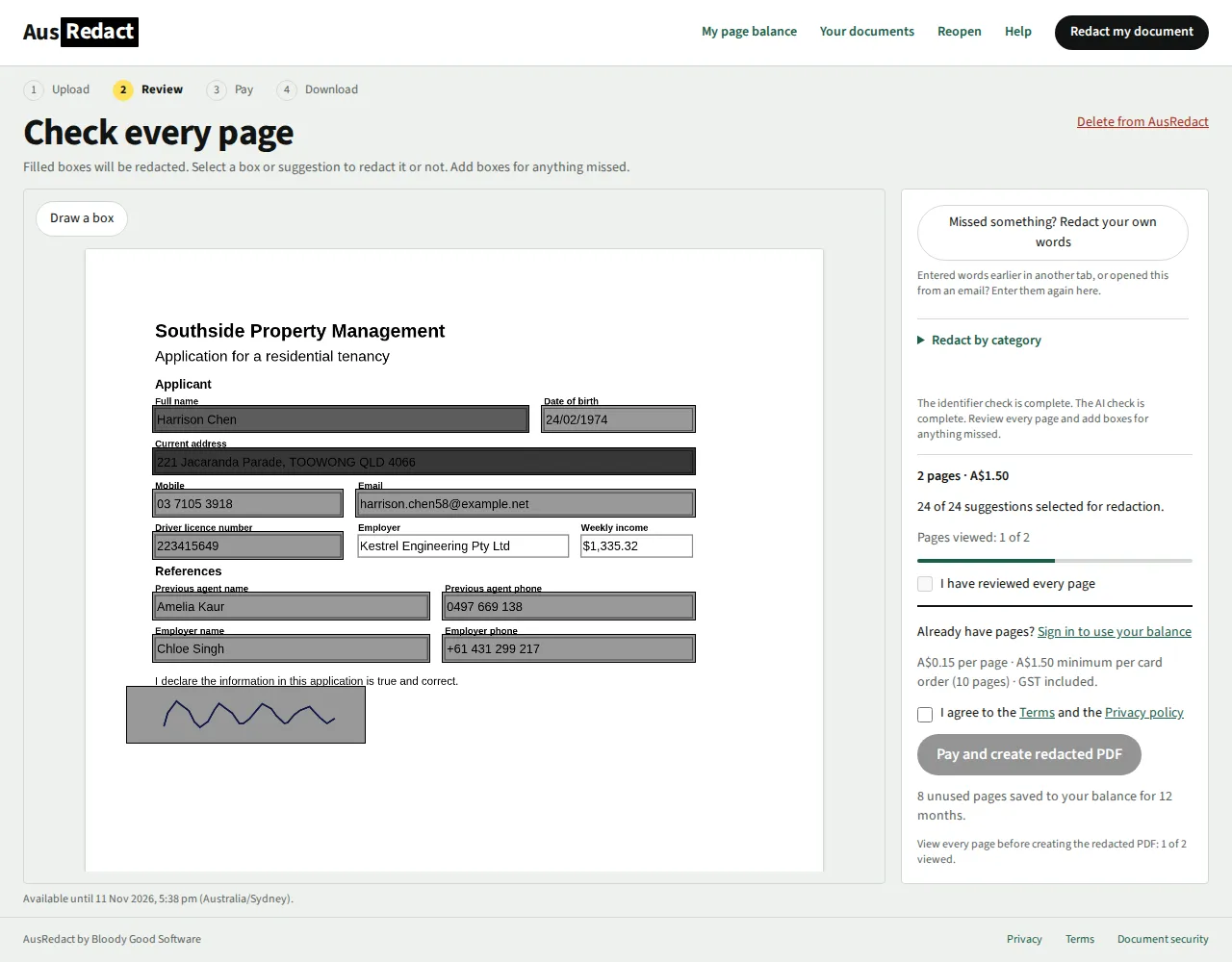
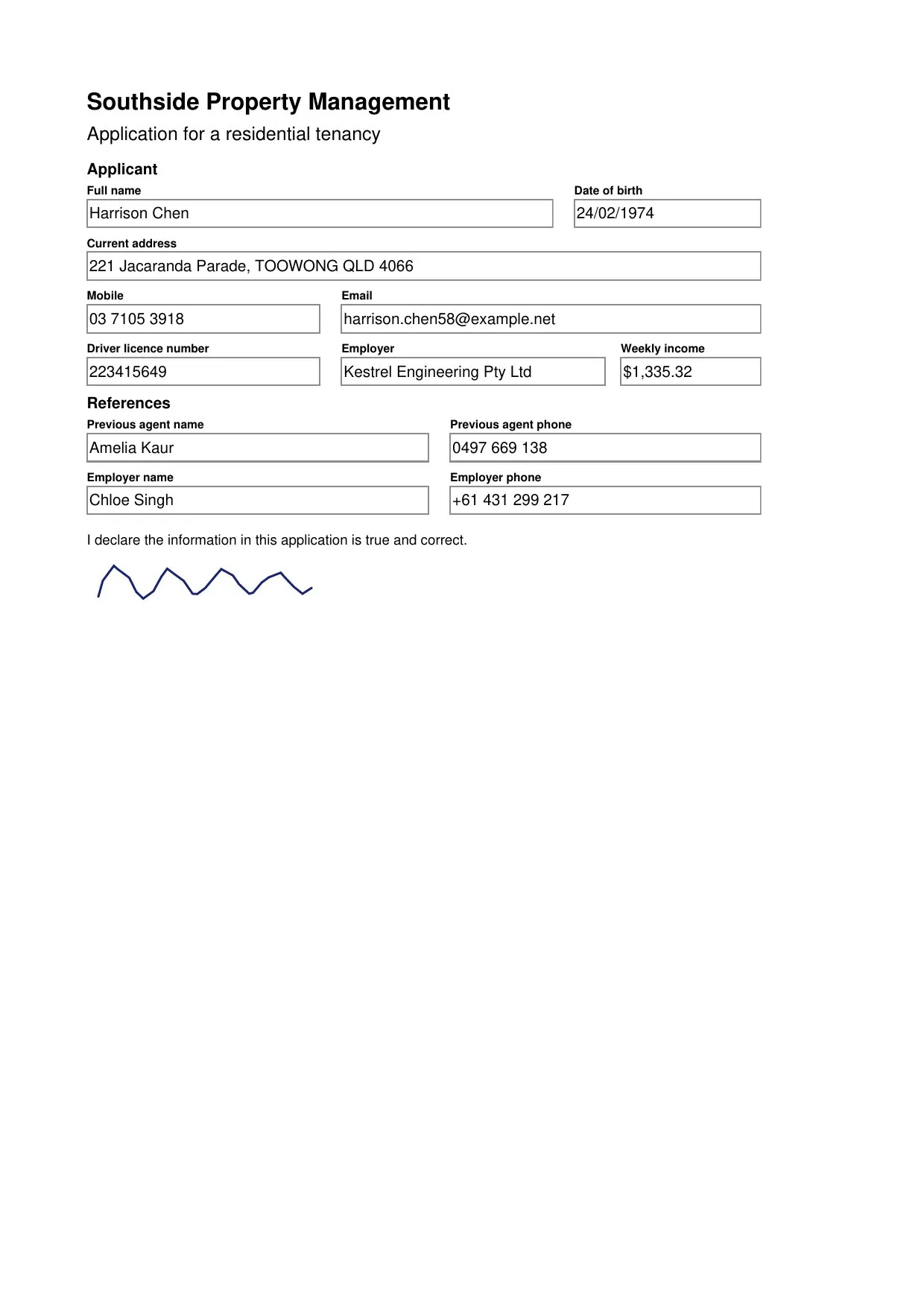
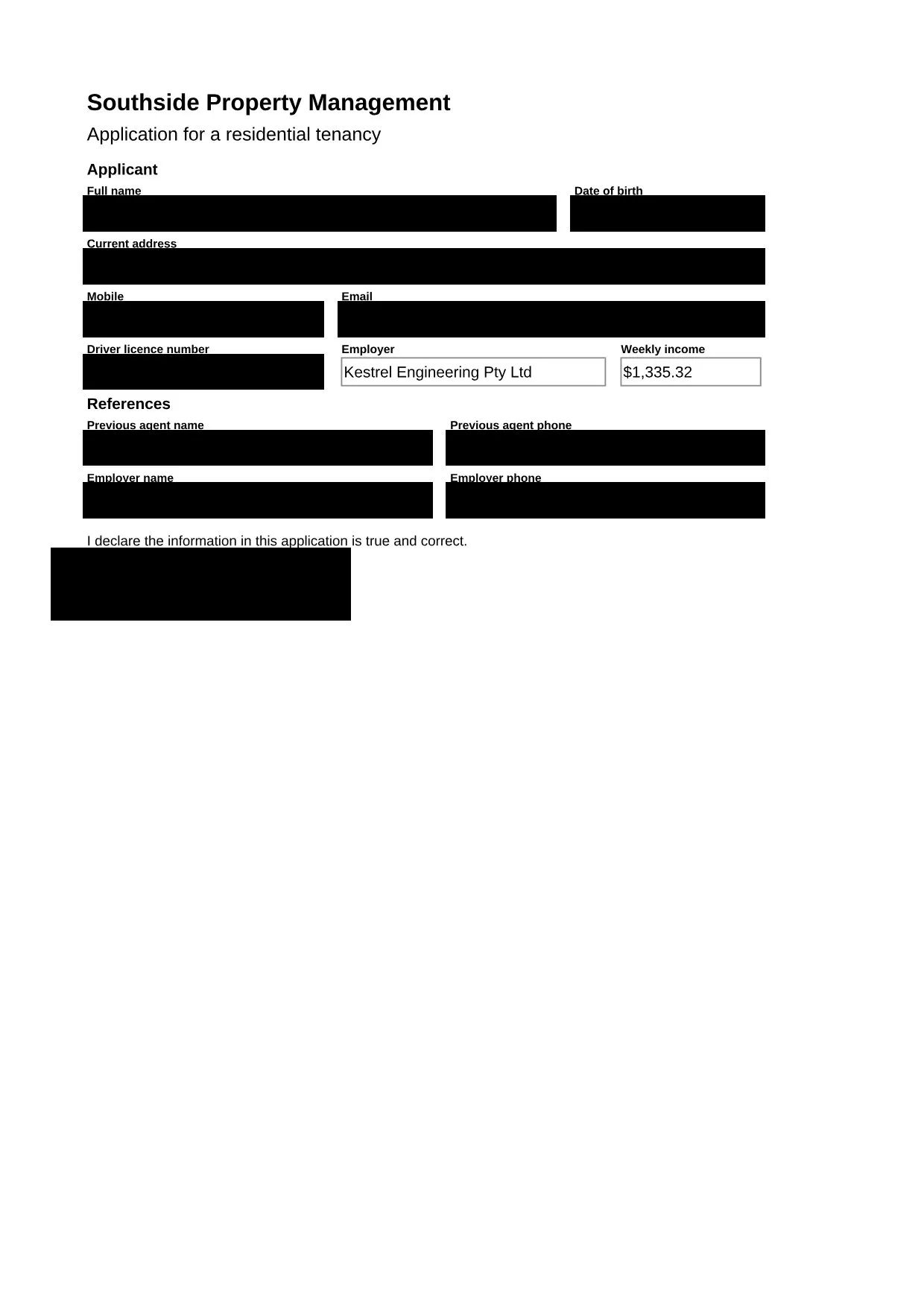
Tenancy application
24 suggestions34 redaction boxes9 categories
Applicant, references and attached photo ID. Names, addresses, contact details, a licence, Medicare and signatures.
Counts cover 2 pages. Document views show page 1. Output verified.
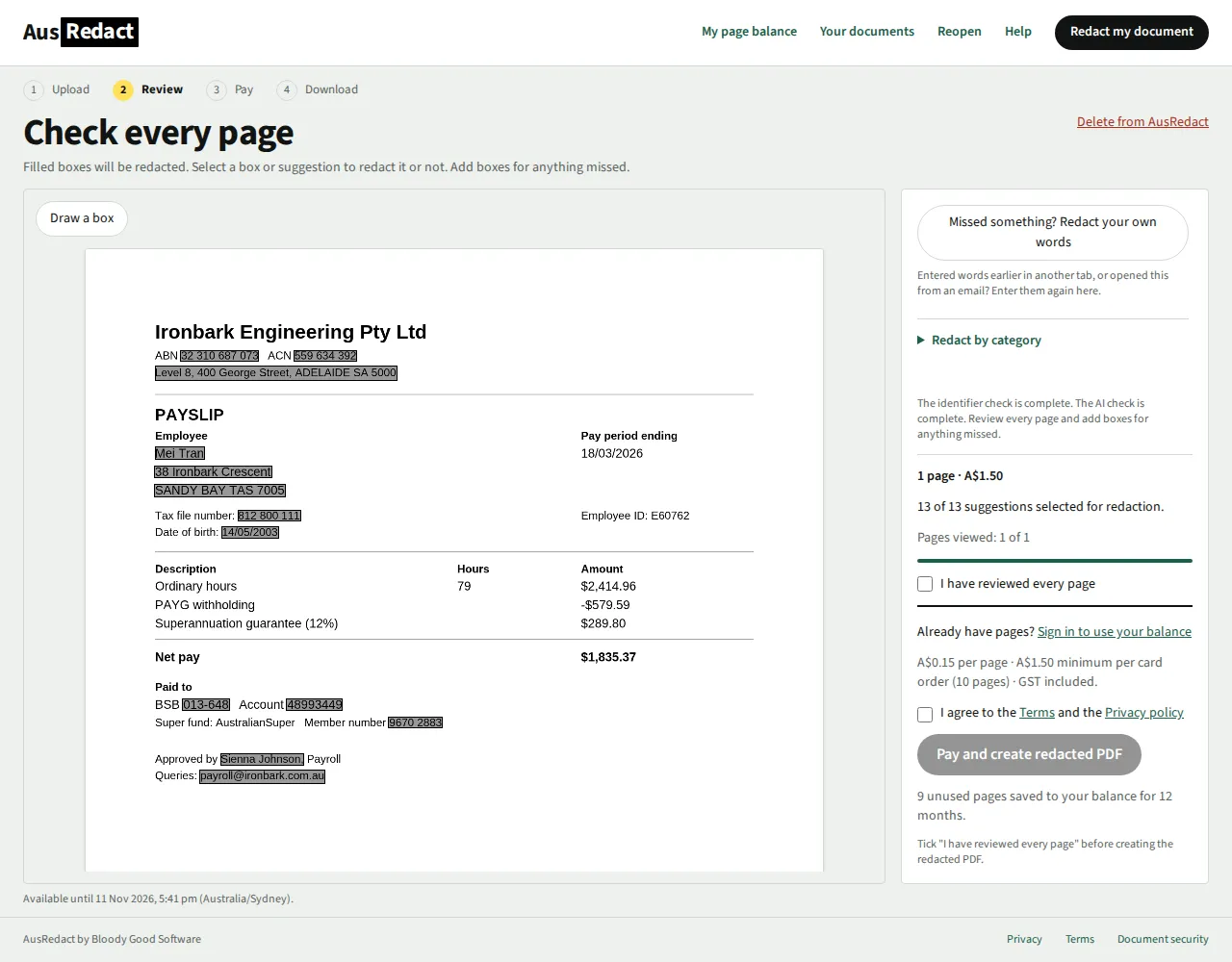
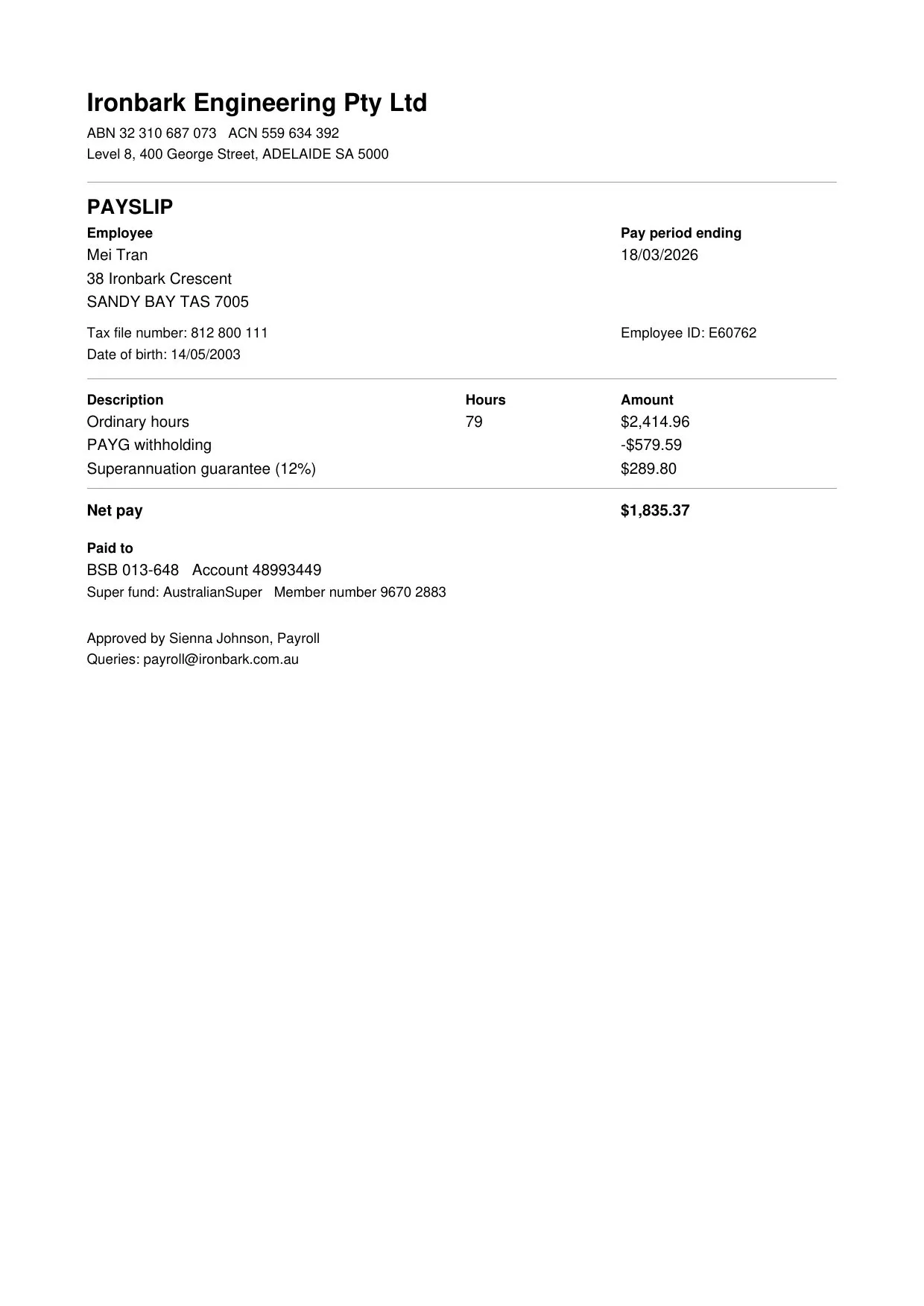
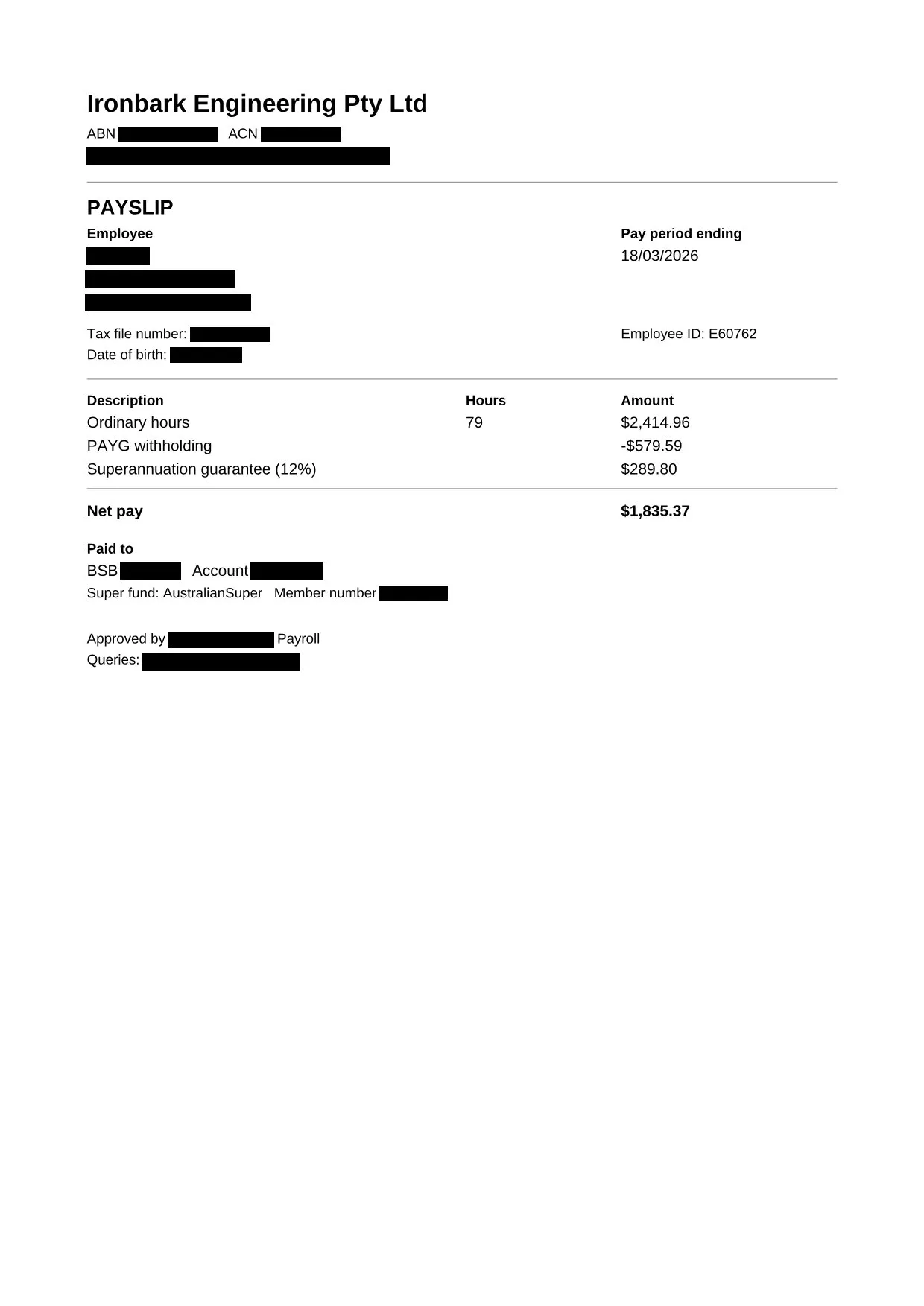
Payroll and bank details
13 suggestions13 redaction boxes10 categories
Employee and payroll details, including a TFN, date of birth, BSB, account number and business identifiers.
Counts cover 1 page. Document views show page 1. Output verified.
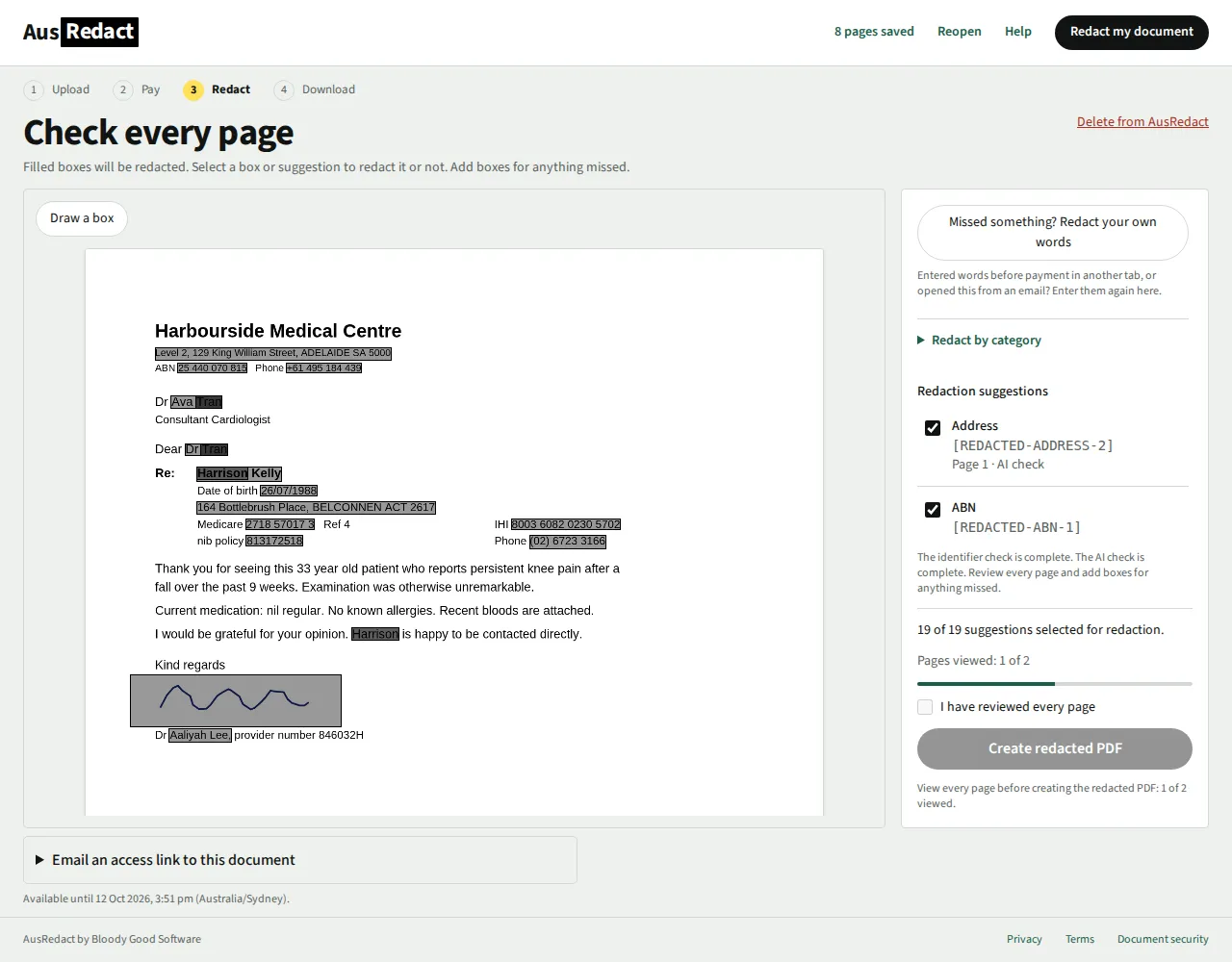
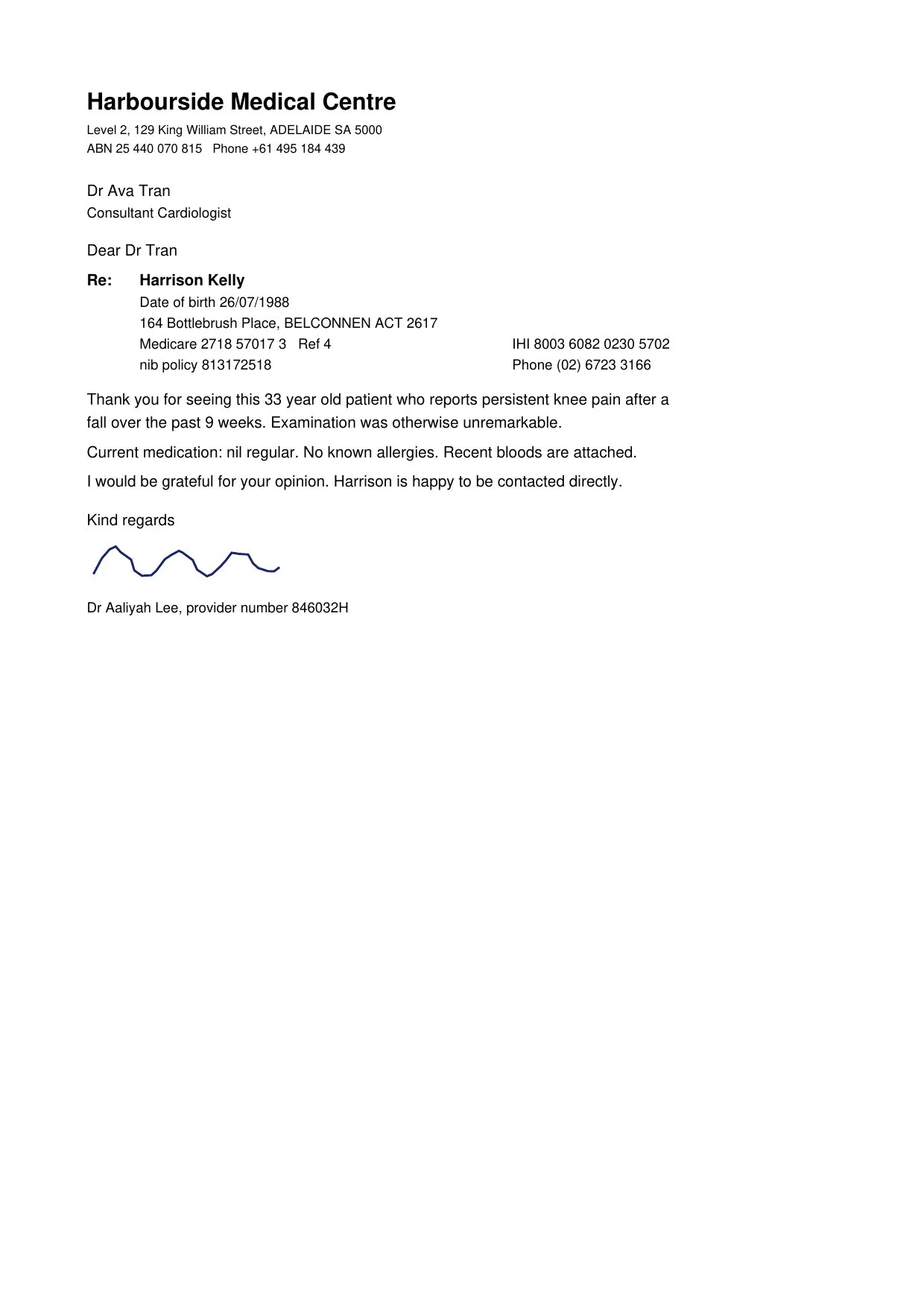
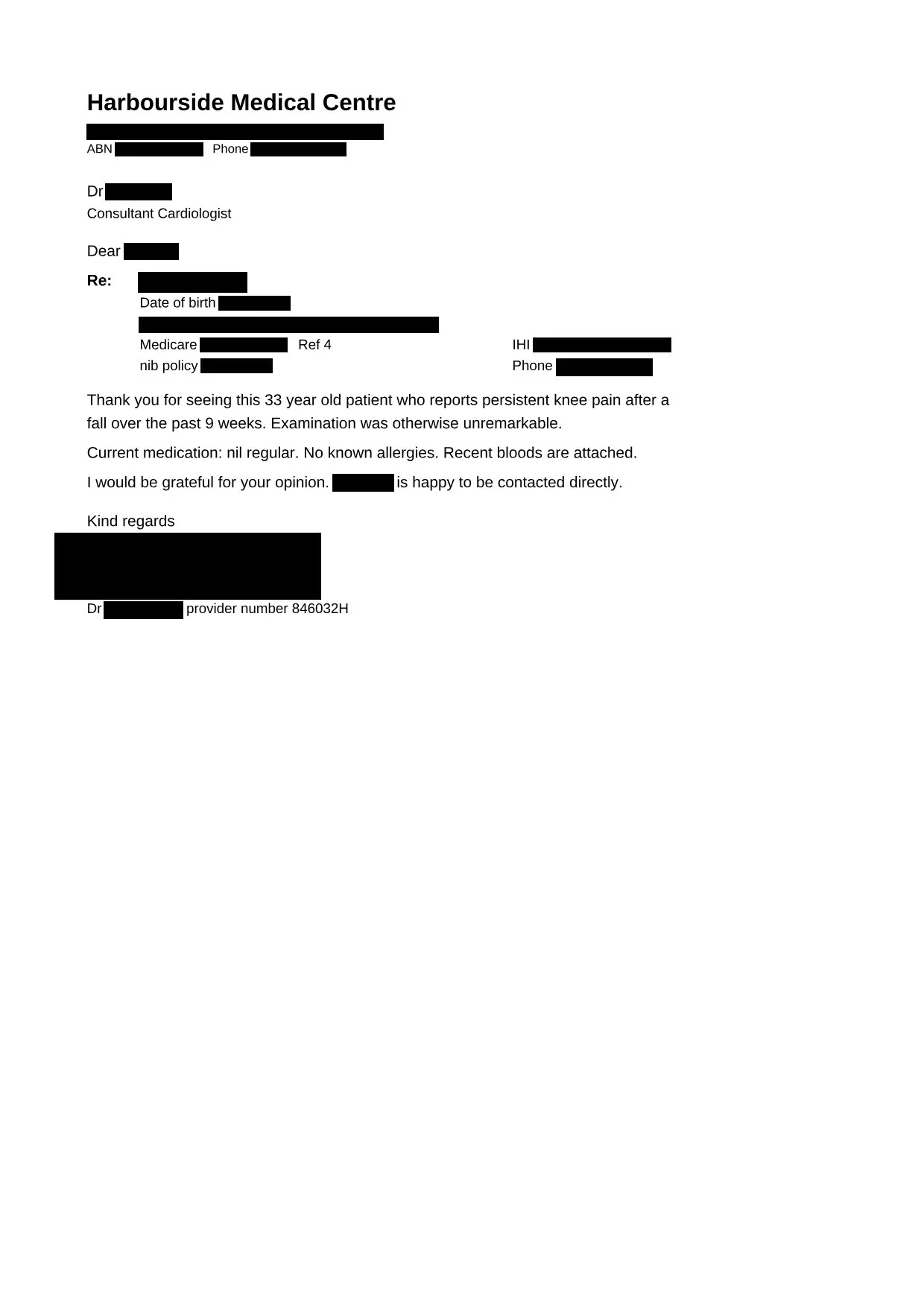
Medical correspondence
19 suggestions27 redaction boxes9 categories
Patient details across a referral and attachment: names, addresses, Medicare, healthcare and policy identifiers, and signatures.
Counts cover 2 pages. Document views show page 1. Output verified.
Synthetic examples captured with the real detector and app. Review every page and choose what to redact.
1. Upload, see the price and choose the AI check
The AI check is ticked on the upload panel by default, at no extra cost. Its AI suggestions help find names, addresses and other sensitive details. The standard identifier check runs either way, and scans still use text recognition in Australia when AI is off.
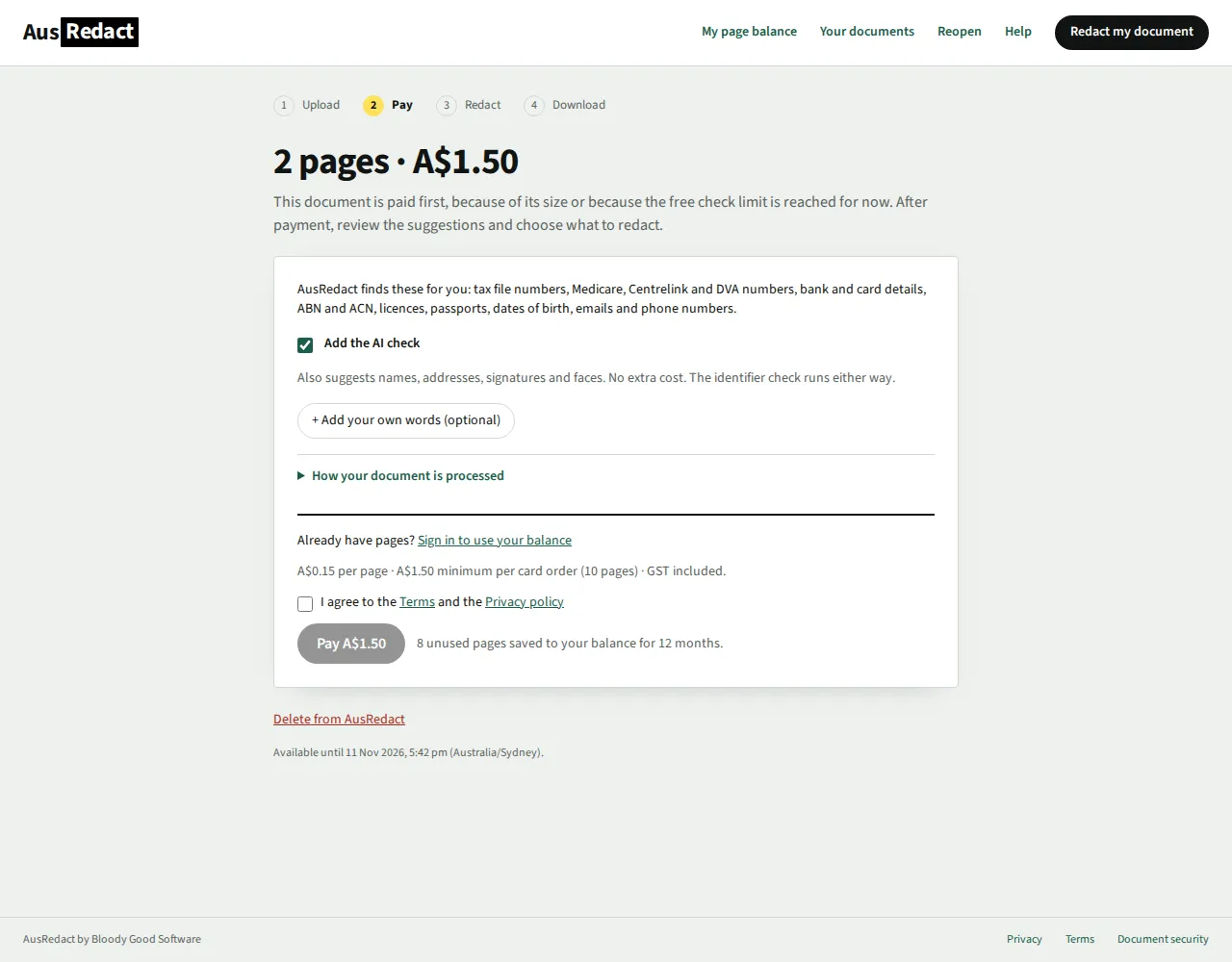
After upload, AusRedact checks file safety and counts the pages. This invented tenancy application has two pages, so the card price is A$1.50 including GST. The minimum buys ten pages; eight unused pages go to your balance for 12 months. The price stays on screen while you review.
Within the free check limit, the checks run straight away and you review every page before paying. A document over the limit, because of its size or because the limit is reached for now, is paid first: the payment screen below shows the price and the AI choice, and review starts after payment. Open How your document is processed on that screen for more detail.
2. Review the suggestions and every page
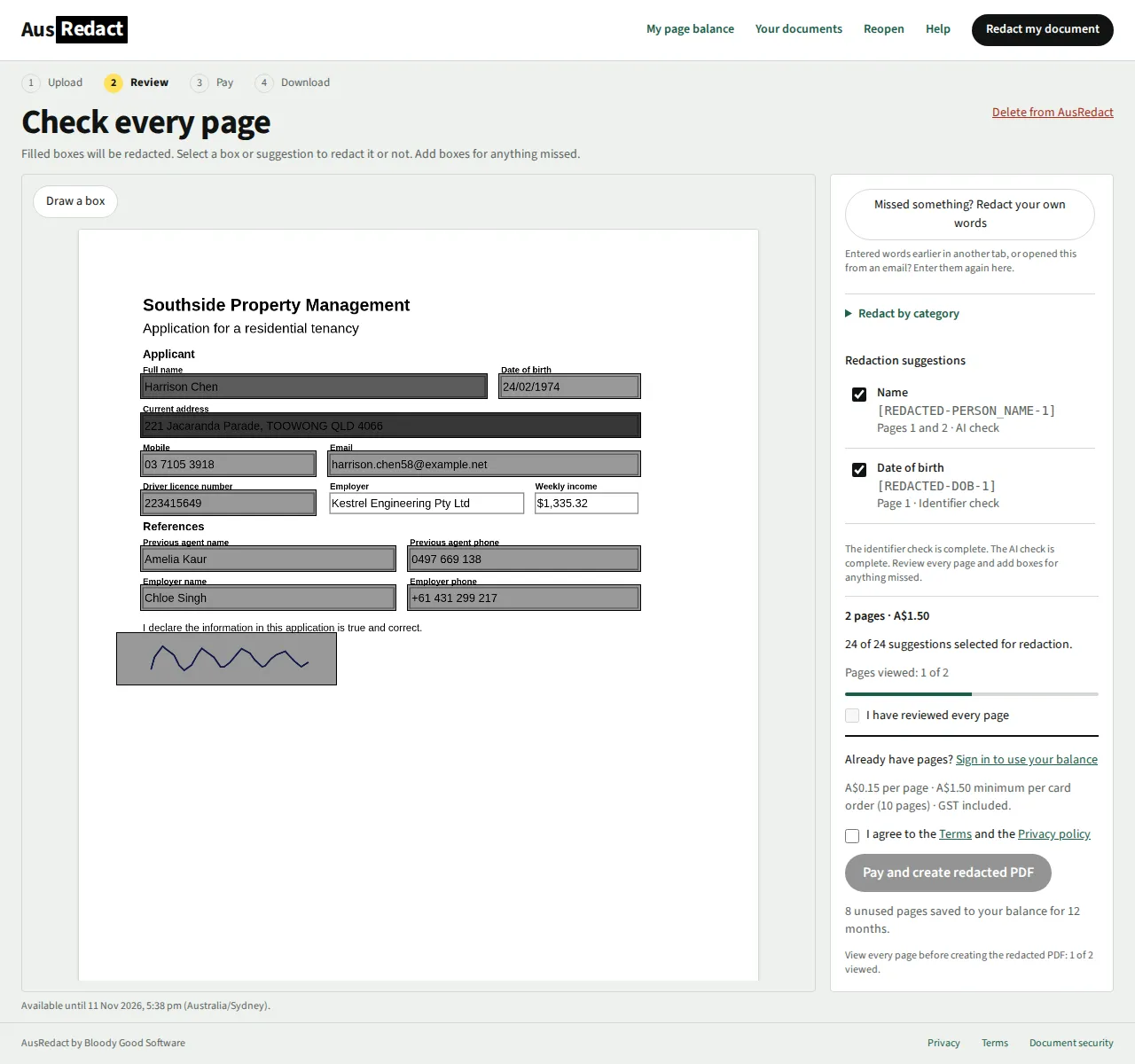
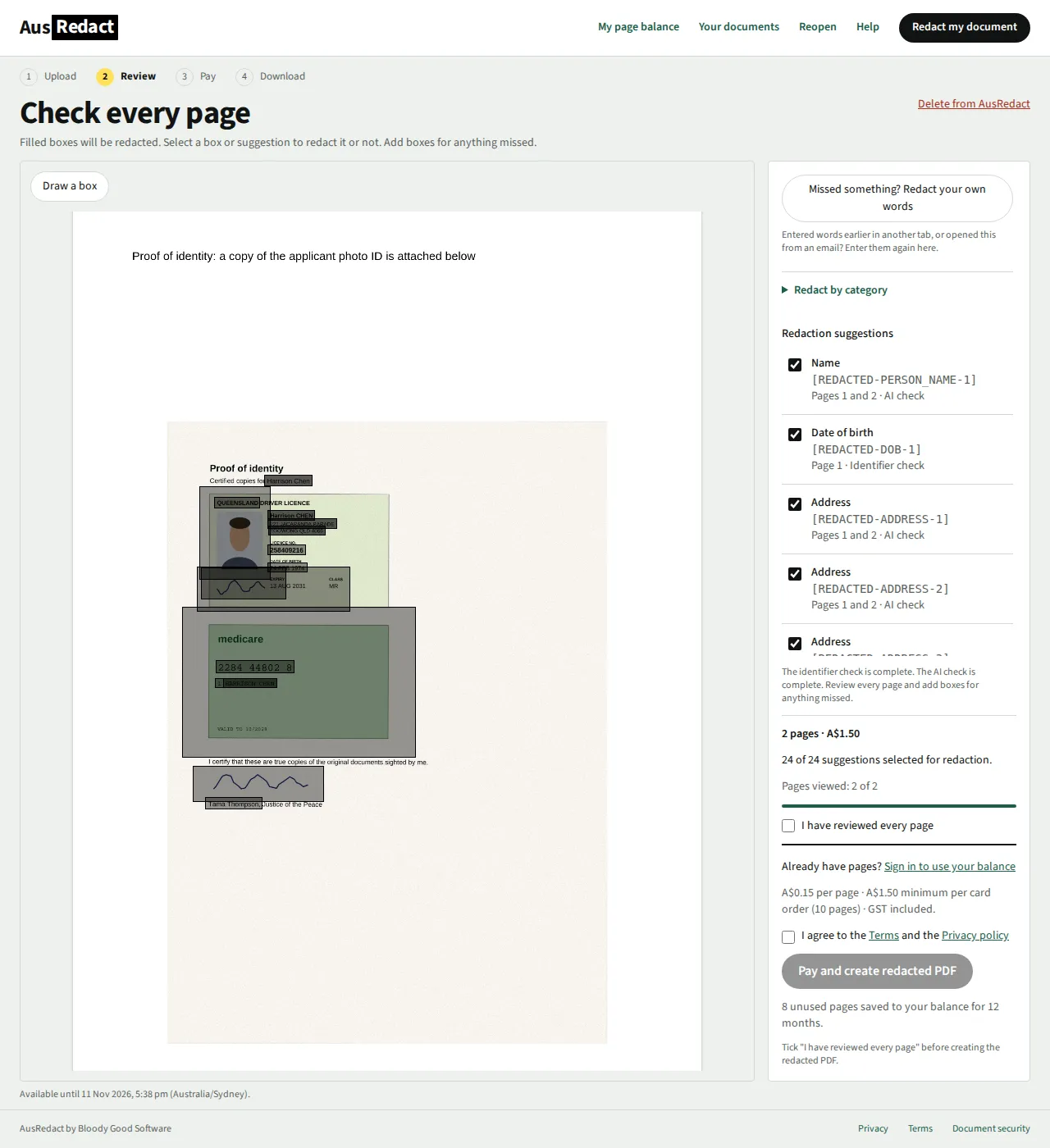
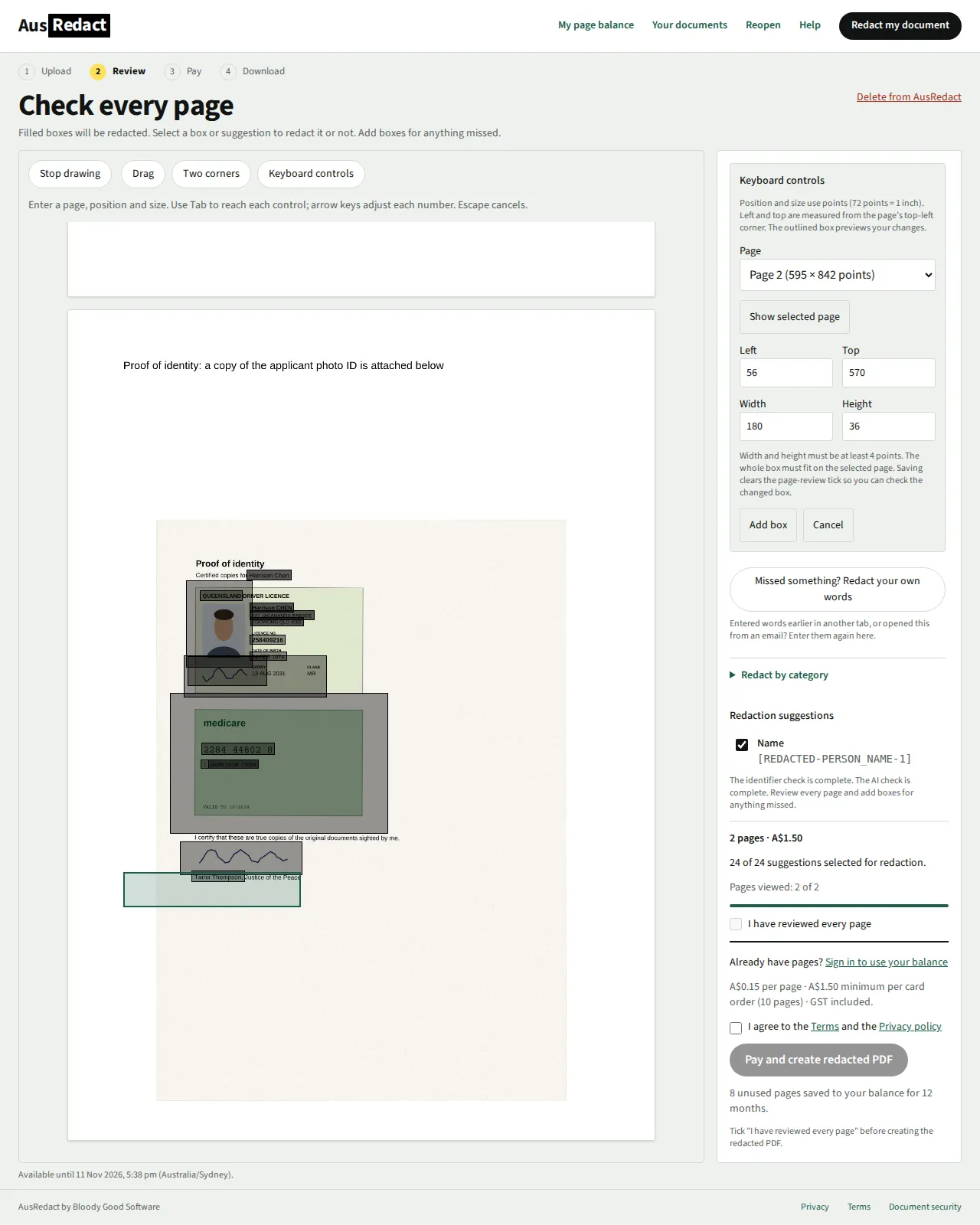
Shaded boxes are selected for redaction and outlined boxes are not. Review boxes stay see-through so you can check what is underneath; only the verified PDF is solid black. Select a box or a suggestion to choose Redact or Don't redact for it, and use the category controls if appropriate. In this example, all 24 suggestions start selected. They cover the applicant and references, contact details, dates of birth, addresses, licence and Medicare details, faces and signatures. Your recipient's requirements may be different.
Enter words in Your own words and choose Find and redact to redact them wherever AusRedact can read them, then check every resulting box. Add spelling variants separately. Scan errors can prevent a match, so also inspect the page image and add boxes for anything missed.
The AI check completed in this example. Suggestions can overlap when the same information appears in several forms or places. You still need to check every page yourself, including the attached ID copies. View all pages before you tick I have reviewed every page.
3. Add or adjust a manual box
Choose Draw a box. You can drag over an area, select Two corners and tap or click opposite corners, or select Keyboard controls. With keyboard controls, choose the page and enter the left and top position, width and height. Position and size are measured in points, with 72 points to an inch and the origin at the page's top-left corner.
The outlined box previews the area. Choose Show selected page to see that page, check its coverage, then choose Add box to save it. Tab moves between controls and the arrow keys adjust each number. Two-corner placement uses two corners on the same page. To abandon an unfinished placement before starting on another page, press Escape, choose Draw a box again, then select Two corners.
For a box you drew or one found from your own words, choose Adjust box in the suggestions list. Change its position or size, check the outline, then choose Save box. Detected AI or identifier boxes do not have that direct adjustment control: choose Don't redact for an incorrectly sized suggestion and add a separate manual box over the intended area.
Adding or adjusting a box clears the I have reviewed every page tick. Check the changed coverage, view every page, and tick it again before creating the redacted PDF. Accessibility and help has more detail about keyboard use and the output's limits.
4. Pay, create the redacted PDF and download it
When you have checked every page and ticked I have reviewed every page, choose Pay and create redacted PDF. Already have pages? Sign in to use your balance. Otherwise, agree to the Terms and Privacy policy and pay A$1.50 by card. If your document was paid first, choose Create redacted PDF instead.
AusRedact applies the redactions you chose to page images and checks the redacted PDF before releasing it. The checks cover page count and shape, the coverage of every box you chose to redact, and the absence of hidden text, annotations and metadata.
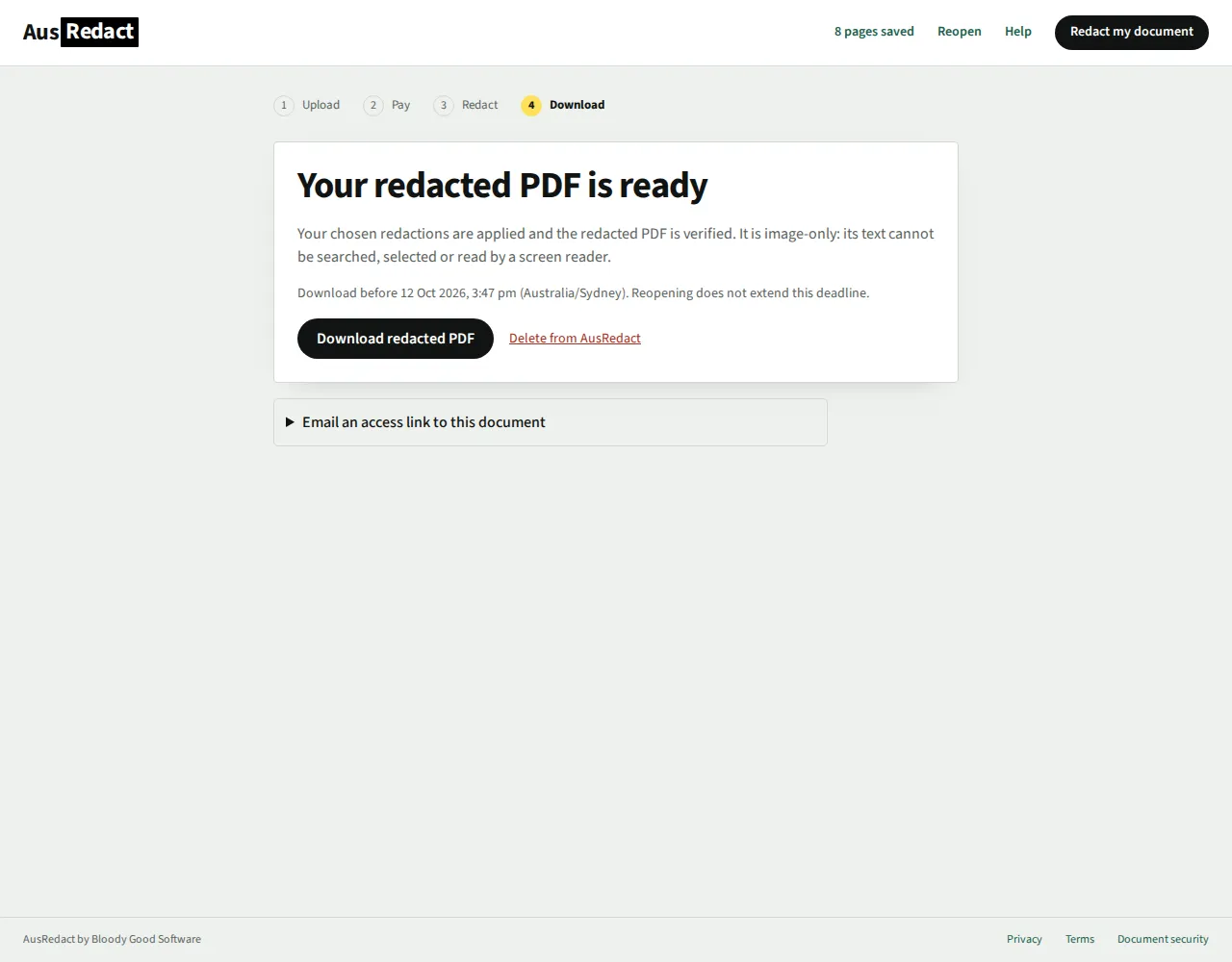
Choose Download redacted PDF and check the downloaded file before sharing. It is an image-only PDF: you cannot search or select its text, and a screen reader cannot read it as text. This is also the output for Word and image uploads.
Save the file before the expiry shown in the app. Documents are processed in Australia and deleted within 24 hours of upload. Reopening a link does not extend that deadline. Choose Delete from AusRedact if you want to remove the files AusRedact stores sooner. Files on your device are unchanged.
Redact your own document
Upload, confirm the price, then review every page and choose your redactions.
Need help?
Describe the issue and include any error message. Do not attach documents or include their contents.